
If you’re struggling to install Apache server on Ubuntu, this guide will help you install and configure Apache on your VPS. Apache is a popular web server software that acts as a gateway between your website and visitors.
Here we will use HostBet VPS hosting to install Apache, a quick and easy process that empowers you to host your own website or applications. By following these simple steps, you can quickly set your website up and running on your VPS in no time.
Prerequisites for installing the Apache server on Ubuntu.
Before you begin, ensure you have the following:
- VPS Hosting: Get Powerful VPS Hosting: Visit HostBet.in
- Access to your HostBet VPS: You should have the IP address and password provided by HostBet. (Once you purchase a VPS hosting plan from any VPS hosting provider, you’ll typically receive an email with the IP address, password, and other details:)
- SSH client: A tool like PuTTY or Terminal (on macOS/Linux) to connect to your VPS.
Connect to Your VPS Hosting:
Step: Open your SSH client and enter the IP address of your VPS and your password.
- To connect VPS hosting via Putty, open it.
- In the “Host Name (or IP address)” field, enter the IP address or hostname of the server you want to connect to.
- Ensure that in the “Connection type,” select “SSH” is selected.
- Leave the Putty port field set to the default of 22.
- You should be successfully connected to your VPS.
Update Package Lists:
Before installing Apache, you need to ensure you have the latest packages. Run the following command:
command: sudo apt updateInstall Apache:
To install Apache Server, use the following command
command: sudo apt install apache2Once you are done with the installing command, press Y when prompted, the installation will finish after a while.
With the following command, we allow Apache through the Firewall.
This (sudo ufw allow in “Apache Full”) command tells your firewall to permit all incoming traffic that is part of the Apache service. This is typically necessary for your website to be accessible from the internet.
command: sudo ufw allow in "Apache Full"To confirm changes, you can always run the “sudo ufw status” command.
This command checks (sudo ufw status) whether your firewall changes worked and what is allowing or blocking them.
command: sudo ufw statusYour Apache server is ready to respond to an incoming request; you can check if it works by going to the server URL (IP address): http://your_IP_address/. The Apache2 default page will be displayed on your screen.
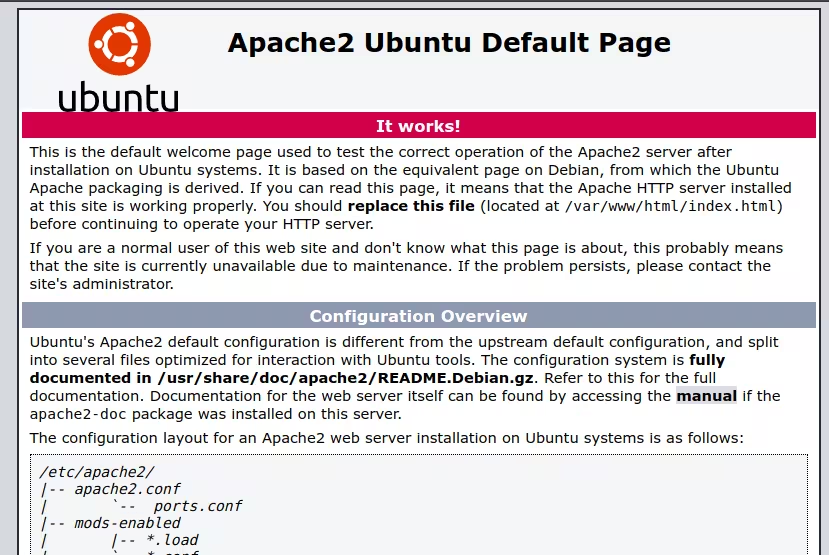
Congratulations! You have successfully installed the Apache server on your HostBet VPS server.
Final Thought on Install Apache Server on Ubuntu
Installing Apache Server on Ubuntu is a simple process that can be completed in just a few steps. By following our Installing LAMP stack guide, How to Install Apache Server on Ubuntu, you will gain the knowledge to install an Apache web server, enabling you to host your own websites and web applications.

